




Azure Sentinel have evolved into an excellent SIEM platform that we operate, tune, and optimize for many of our clients. One of the top features that differentiates Sentinel is that it is truly cloud native, fully exposing its data and functionality for use with all the other capabilities in Azure. I see the sky-as-the-limit when it comes to being able to creatively augment Sentinel with valuable features and functionality.
Integrating Evidence Collection and Storage into Sentinel
One recent concern from a client was that Sentinel Incidents don’t provide an evidence storage mechanism, where SOC analysts could gather evidence, logs, emails, or other data, and archive it with the incident. While Sentinel incident management doesn’t provide this functionality natively, I thought it was a great opportunity to show how quickly problems like this can be creatively solved.
In this scenario, we are going to show how to quickly (< 1 hr) build a way to create an automated evidence storage mechanism that fully integrates with Sentinel Incidents. You can even make the evidence storage immutable so that evidence can’t be modified after it is written! Let’s dig in and see how this is done.
First off, let’s see a high-level architecture of what we are going to build, along with the rough order of operations:

The Build
This solution only needs a few quick steps.
1. Storage Container
Our first step is to create a storage account that will allow us to create a container and folders in which to put our files. Azure makes this easy. Find Storage Accounts, and click create. You will want to make sure you deploy in the same Subscription and Resource Group as your Sentinel deployment. I recommend using standard performance and locally redundant storage.

A storage account provides several different mechanisms to persist data, including file shares, database tables, queues, and containers. Containers are the simplest, and the right pick for this job. Next, we will select Containers, then create a container specifically for our data. This will be our ‘root’ folder for all data actions going forward.
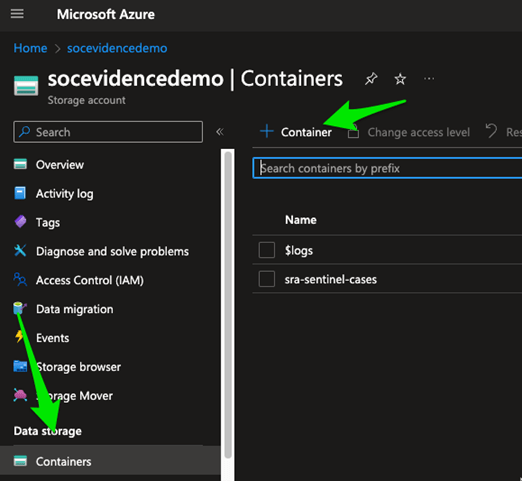
2. Incident Triggered Logic App
Next up we will create the Azure Logic App that will fire when an incident is triggered. This logic app will extract the incident number from Sentinel, create a folder in the storage account with that incident ID number, write out information about the incident into the folder, then add a comment / description update to the incident that will link back to the storage account.
Within Sentinel, go to Automation then choose to create a new playbook. Make sure it’s in the same Subscription and Resource Group as Sentinel. Give it an easy to remember name and click create!
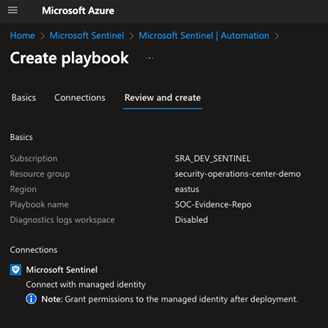
Once you’ve started your Logic App, you’ll be presented with the Logic App Designer screen that shows a prepopulated trigger from Sentinel. This will automatically populate the logic app with all the detailed information from the incident, so you can use it in your workflow. In our example, we will create a workflow that looks like the following:

Our create blob action is the first critical step. In this action, we extract data from the incident details and use it to create a folder in our storage container that will create a file containing the Incident ARM ID. This quickly solves two key needs. First, it allows us to generate the folder for the incident (you can’t create empty folders in Azure Storage Containers, so we need a file), and it allows us to store the globally unique identifier for the incident, which we will need in a later step to update Sentinel instances. First connect to your storage account. You may need to grant permissions in the storage account so that the logic app you just created can write to it. Go back to your storage account, choose access control, then add a role assignment. Choose the role that you’re assigning, I recommend ‘Storage Account Contributor’. On the next screen, you’ll assign that role to your logic app by selecting ‘Managed Identity”, then find the name of your Logic App on the right.

Go back to your Logic App and confirm your connection works. You should be able to type in your storage account name and then see the folder path automatically populate. From there, you’ll create your blob name as by clicking in the box, and selecting the Incident Sentinel ID option, which will dynamically populate your incident ID number from Sentinel, followed by arm.txt. Then we populate Blob Content with the Incident ARM ID value.
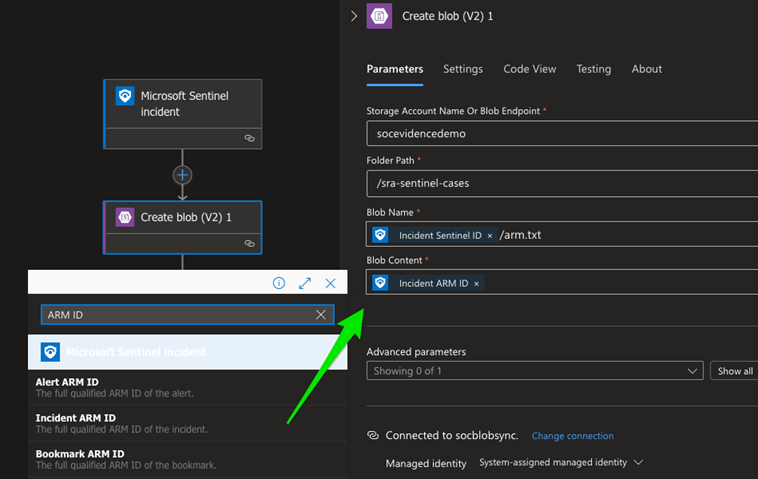
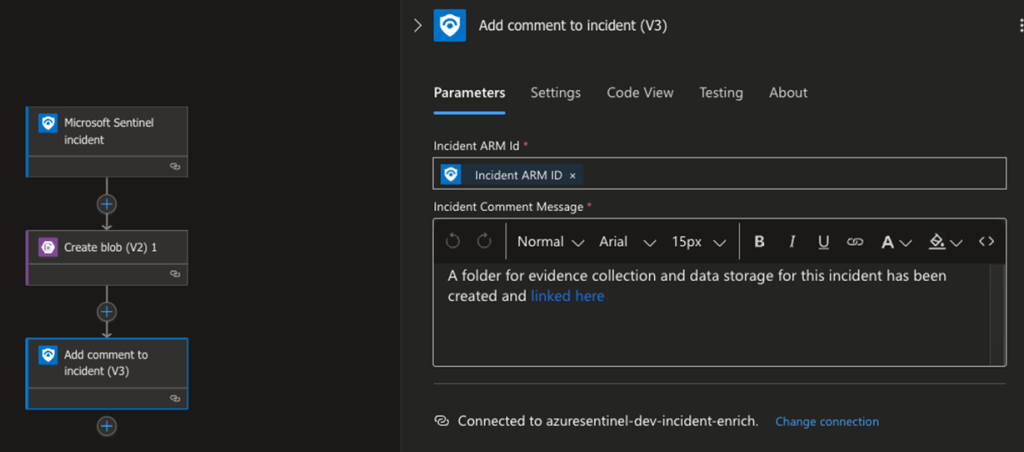
This will create a file in your root folder with the structure sentinel-incident-id-number/arm.txt, such as 12777/arm.txt. The ARM file will contain the incident identifier that we will use later, but then you’ll also see a folder for incident 12777. This becomes the official repository for all evidence collection for incident 12777. Last, add the connector to ‘Add comment to incident (within Sentinel)’, that will provide a link in Sentinel back to the storage container. You can grab the URL from your storage container browser view and populate it as shown below.
3. Logic App for File Creation Callback
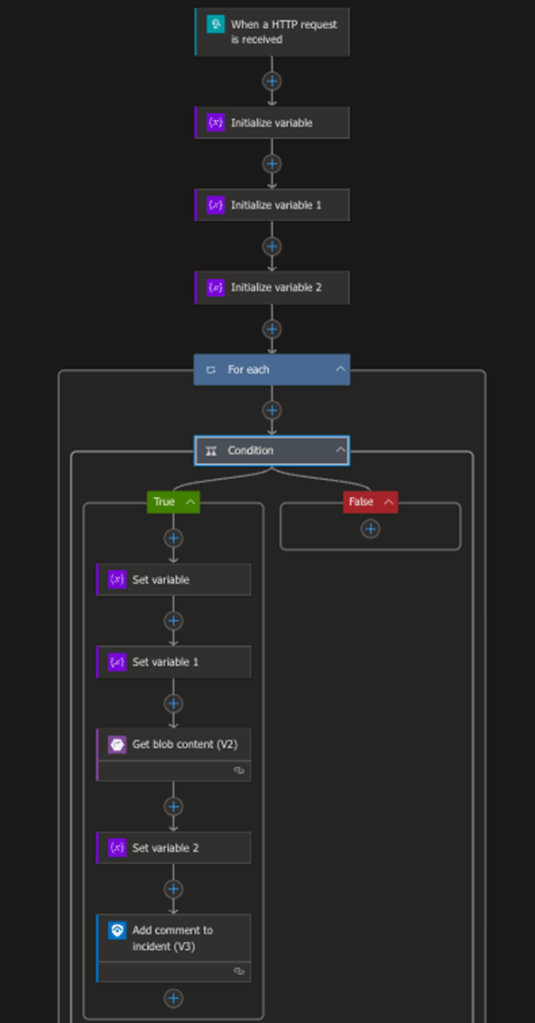
The next step is to create a Logic App that will get triggered whenever a user writes a file to the storage container. This comes by way of a webhook trigger and does a few things. First, it gets data about the file that was written and stores values in variables. It checks to make sure it’s not the initial file creation of the arm.txt from step 2, so it will ignore that. It then parses the folder name out from the full path of the file that is created, retrieves the arm.txt file from that folder, and then uses that value to update the corresponding incident that a file has been uploaded. A quick diagram of it is below.
We won’t go through every step here, so feel free to go to our GitHub and get the code to deploy this yourself. Keep in mind you’ll likely need to grant permissions once again for this logic app, this time within the Azure Sentinel / Log Analytics workspace. Consider a role such as Microsoft Sentinel Contributor and assign it to your Logic Apps Managed Identity.
4. Trigger on File Creation
We are almost done! Before you leave your Logic App from step 3, make sure to go to the trigger ‘When a HTTP request is received’ and copy the HTTP Post URL. We’ll use that in just a moment. This is the URL that needs to get called when a user writes a file into blob storage. Head over to your storage account once more and click the ‘Events’ menu on the left-hand side, then choose ‘More Options’ and ‘Web Hook’ as shown below.
From here, you need to specify a name, and change ‘Filter to Event Types’ to just be ‘Blob Created’. Then select ‘Configure an Endpoint’. Just paste the HTTP POST URL you copied at the beginning of the section into the endpoint field, and you’re all set. Every time a file gets written to the storage container; it will now automatically share all the metadata about the write event to our logic app!
Summary
In this example, we built an easy way to allow a sidecar evidence storage repository to be dynamically created and bi-directionally synced with Sentinel. This functionality can allow you to manage complex external data associated with incidents to manage and collaborate quickly and securely (all with tamper-proof evidence storage!). See our quick video below for the full video of it in action and check out our GitHub for resources that can help you deploy this yourself!

Mike Pinch
Mike is Security Risk Advisors’ Chief Technology Officer, heading innovation, software development, AI research & development and architecture for SRA’s platforms. Mike is a thought leader in security data lake-centric capabilities design. He develops in Azure and AWS, and in emerging use cases and tools surrounding LLMs. Mike is certified across cloud platforms and is a Microsoft MVP in AI Security.
Prior to joining Security Risk Advisors in 2018, Mike served as the CISO at the University of Rochester Medical Center. Mike is nationally recognized as a leader in the field of cybersecurity, has spoken at conferences including HITRUST, H-ISAC, RSS, and has contributed to national standards for health care cybersecurity frameworks.