




Recording Teams meetings is a convenient way to memorialize an important discussion. But without proper controls in place, recordings can capture sensitive information, consume valuable cloud storage space, and become a data loss vector. Make sure your organization has configured the right settings to mitigate these risks and learn how to use Purview to understand if the organization is already oversharing.
Understanding Microsoft Teams Recording: How It Works and Key Features
Everyone has attended a Microsoft Teams meeting and more recently, may have even noticed that it was being recorded. Below are the “nuts and bolts” of a Microsoft Teams recording:
- Who can record a Teams meeting? By default, any attendee can click “record” after they’ve joined. With a Teams Premium license, you can get more granular based on meeting roles.
- Who can enable a transcription? If your organization has Copilot, you can turn on transcription via a Teams meeting policy. Organizers, co-organizers, and presenters can enable “transcribe” if allowed by policy. Meeting roles can be assigned individually when scheduling the meeting.
- Where are meeting recordings stored? Meeting recordings are saved in a “Recordings” folder in the OneDrive of the meeting organizer – even if someone else decides to record it. If you want to record, be courteous and make sure the organizer has the room for it.
- Who can access a meeting recording? The meeting organizer can decide by sharing a link to the recording from their OneDrive.
- What does Copilot do with meeting recordings? If transcription is enabled, Copilot can automatically generate a transcription of the meeting including most of what is said (attributable to the person speaking) and even generate a summary and list of action items.
Security Risks and Mitigations for Recording Microsoft Teams Meetings
You may be asking “what could possibly go wrong?” There are several security considerations regarding recording Teams meetings. The table below summarizes some simple ways to mitigate them.
| Risk/Issue | M365/Purview Mitigation |
| Users are consuming too much cloud storage space in OneDrive for meeting recordings. How often do users actually go back and replay these recordings? |
|
| Sensitive data contained in meeting recordings and transcripts can be disclosed when recordings are shared externally. Since the recordings live in a user’s OneDrive, they may be able to generate sharing links to external users. Note that if a user shares their “Recordings” folder from OneDrive, the recipient will get access to any additional meetings that are stored there for as long as the sharing link remains valid. |
|
| Meeting transcripts contain sensitive information that is not appropriate for all users within your organization. |
|
| Meeting recordings are downloaded from OneDrive to local storage. |
|
How Can Purview Help Reduce Security Risk in Microsoft Teams Recordings?
Some users may have already shared meeting recordings externally (or other files for that matter). There are a few ways to figure out when that happened and determine whether it’s appropriate or not. Learn more about getting the most value out of Purview here.
- Run the SharePoint data access governance reports from the admin center to identify users who have created “anyone” sharing links, or “specific people” links that have been shared externally.
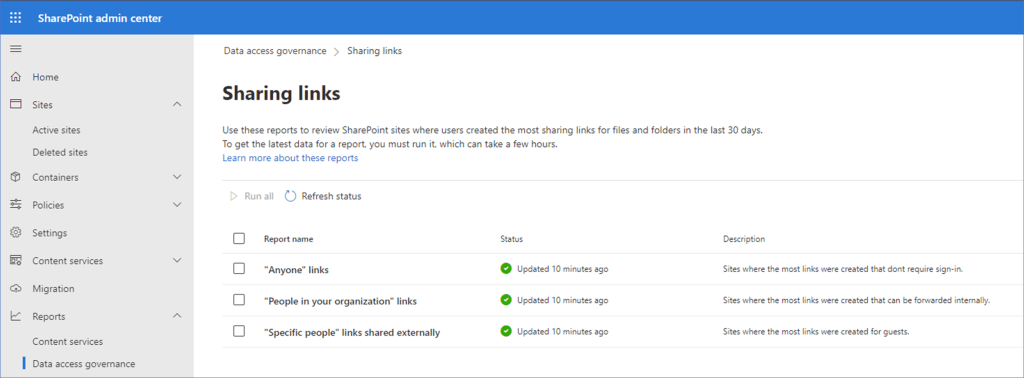
The data access governance reports in the SharePoint admin center that identify sharing links that have been created by users. Note that these repots can only be run once every 24 hours.
- Use the Purview audit log to run a search for activities based on friendly names for “Sharing and access request activities” to identify events where someone has created any type of sharing link or invitation.

The Purview Audit Log search criteria where administrators can search for recent activity where other users have created various types of sharing links.
- Use the Purview Communication Compliance solution to create a policy that monitors Teams meeting recordings with transcripts to alert for sensitive information types or inappropriate language

This Communication Compliance policy shows where to select Teams as the location for a policy, which includes meeting transcriptions.

This portion of the Communication Compliance policy shows where you can create conditions to generate alerts based on certain words or phrases (profanity) or based on specific sensitive information types. In this case, we used a custom sensitive information type to check for mentions of specific client names.
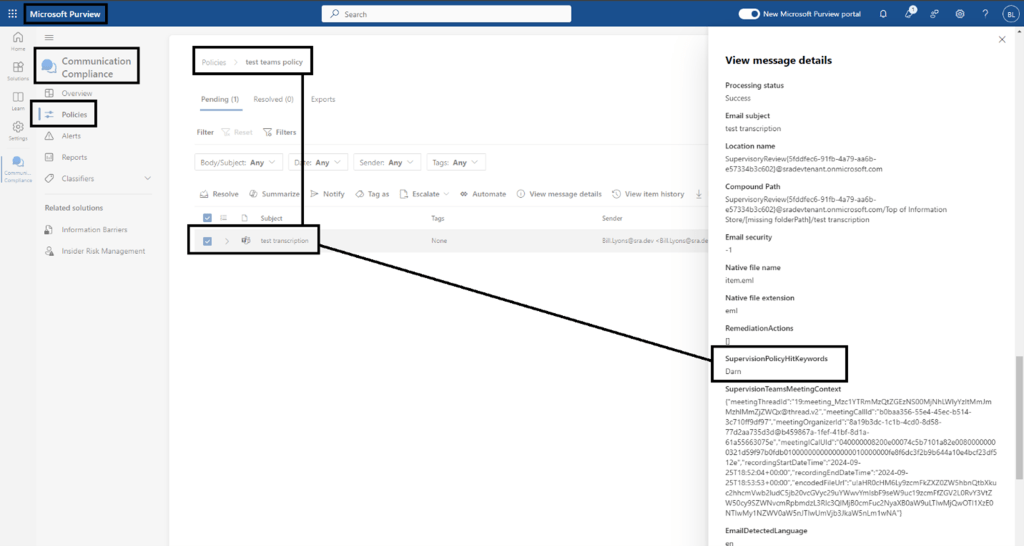
This shows the alert generated by our test policy where the condition matched for an instance of profanity in a transcript.
Meeting recordings can be valuable – but only when shared with the appropriate audience. Given the risks of oversharing and the amount of space they consume, organizations should think carefully about who is allowed to record in the first place – and restrict that via configurations.
Security Risk Advisors can help you assess your Microsoft configurations. If you’d like assistance, contact us here.

Bill Lyons
Bill is a cybersecurity consultant with experience leading framework-based assessments including NIST, CIS, HIPAA, HICP and other customized maturity frameworks. Additionally, Bill has experience performing cloud configuration assessments across Azure, AWS, and GCP with a focus on Microsoft 365 tenant hardening. In the last few years, Bill has developed SRA’s Purview service offerings to help clients get the most out of their Microsoft license model.