




Whether your organization has just invested in an AI solution or is still evaluating options, having a clear strategy for training your team and integrating the technology effectively is essential. For many leaders, the challenge is knowing where to begin and how to encourage analysts to adopt AI naturally within their workflow rather than feeling forced into it.
A useful comparison is the rollout of SOAR platforms. SOAR promised to save analysts significant time, automate repetitive tasks, accelerate response efforts, and allow teams to focus on higher‑value work. Yet many organizations still struggle to realize SOAR’s full value because teams were not adequately trained or attempted to use it for overly complex problems before building foundational skills.
To avoid repeating these pitfalls with AI adoption, it’s crucial to skill up your SOC analysts early and foster genuine interest. Three key considerations should guide your approach:
- How do you promote natural integration of AI into analysts’ workflows?
- What tools and data does AI need to be most effective?
- How will you measure performance and success?
This blog focuses on the first question: driving natural AI adoption within the SOC. Future articles will address tooling, data requirements, and measuring effectiveness, for example, see Examining the ExCYTIn-Bench Approach for Benchmarking AI Incident Response Capabilities.
Driving Natural AI Adoption
Analysts are far more likely to embrace a tool if they perceive clear value in using it. Once they begin to see benefits, they naturally push the tool’s boundaries and explore more advanced applications. This organic adoption is essential for the long‑term success of any technology, especially an investment as significant as AI.
However, traditional approaches such as asking analysts to generate their own AI use cases immediately often fail. Many analysts simply don’t know where to start, and when they encounter roadblocks with a complex, largely opaque technology, they can quickly become frustrated. Analysts may also inadvertently begin with highly complex problems, where even human interpretation is fluid, and small pieces of new information change the picture entirely. In such environments, it becomes difficult to determine whether the error lies in the analyst’s approach or the AI’s output.
A more effective strategy is to use exercises with deterministic outcomes which yield clear right or wrong answers. Capture‑the‑Flag (CTF) exercises are ideal for this. With a finite data set and objective outcomes, analysts can focus on learning how to apply AI tools without ambiguity. CTFs have long been a popular, engaging method for developing cybersecurity skills in controlled environments.
The following walkthroughs use examples from the 2026 SANS Holiday Hack Challenge to demonstrate how AI, specifically Microsoft Security Copilot, can help solve challenges.
Exercise 1: It’s All About Defang
Objective: Teach analysts the fundamentals of regular expressions (regex) for extracting and defanging IOCs.
Regex is a common technique for parsing logs or identifying specific patterns in text. In this exercise, analysts extract IOCs from a raw email and use the `sed` stream editor to defang them.
Using Security Copilot, we begin by asking it to generate regex patterns for various IOC types and to show the extracted results. This allows analysts to review and refine the regex until the output matches expectations. See below for our initial prompt, and the results supplied by Security Copilot.
Below is the string I need to extract IOCs from using a reg ex. I need you to help me with the regex string to extract all the IOCs. The IOC types I need are: IP Address, websites, domains, hashes, and email addresses.
Break your output into two sections: 1st section has the regex statement and the 2nd section has the output of what those would produce.
I may need to exclude certain IOCs in the output.
Start String:
From: “Icicle Innovations” <sales@icicleinnovations.mail>
To: “Neighborhood Watch” <residents@dosisneighborhood.corp>
Figure 1: Our initial prompt (feel free to copy text above)
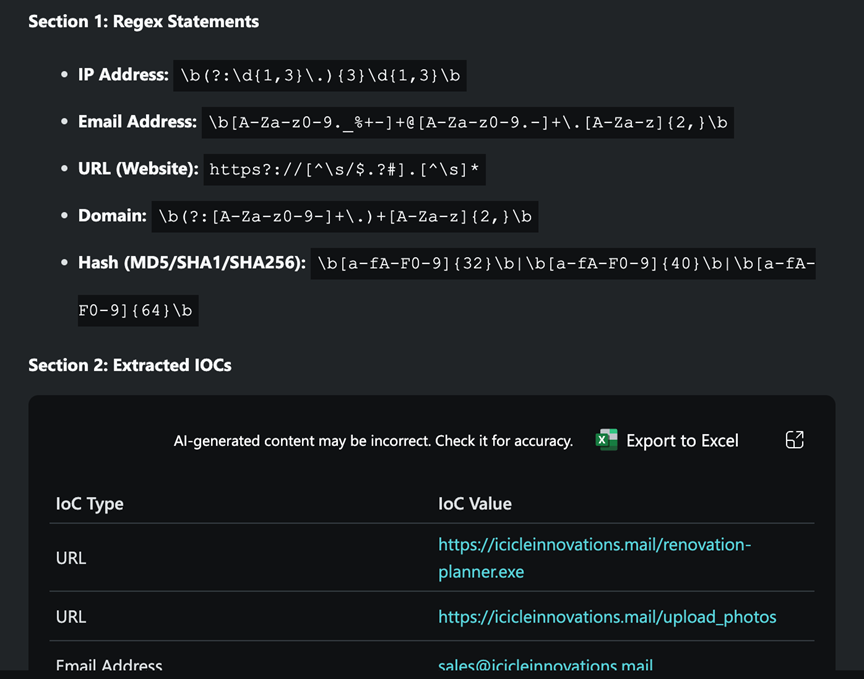
Figure 2: Security Copilot’s response
As expected, the results include false positives, such as internal domains or strings matching domain-like patterns, which can be filtered manually or excluded through more advanced regex constructs. In this exercise it is easiest (and actually expected) that you go the manual route and just click the red X next to any of the false positives. The important part is that you now have a regex to capture each of the IOC types. These are by no means perfect, but sending feedback to Security Copilot can help you get better results, for example, you can tell Security Copilot that IP address are only in the range of 255.255.255.255 and it can adjust its regex to only include 255 instead of it’s current state that allows it to flag 999.999.999.999. It is important that the false positives be taken out, before moving on to the sed command, as all the IOCs that were not automatically or manually removed in this step will carry over to the next, causing a failure when trying to submit your final results.
Next, analysts must defang the identified IOCs using a single ‘sed’ command. By providing Security Copilot with the full list of values to transform and referencing challenge guidance, it produces a one‑line command.
I need help creating a sed command. I need you to write a command I can pass to sed that will do the following:
– change ‘.’ to ‘[.]’
– change ‘@’ to ‘[@]’
– change ‘http’ to ‘hxxp’
– change ‘://’ to ‘[://]’
I also need the command to be in one string. I have been told you can chain commands together like this; Chain multiple commands with semicolons: s/\./[.]/g;s/@/[@]/g
Figure 3: Our prompt for ‘sed’

Figure 4: The output from Security Copilot with our ‘sed’ command
If the command is used as is, analysts quickly learn an important nuance: the dot (.) must be escaped to avoid replacing every character. Like before, we can either tell Security Copilot about our predicament and have it adjust accordingly, or we can simply put a backslash in before that first period and all will be right with the world. Once corrected, we can Apply All Defanging by clicking the Apply button, and then submit our results to get our final report and complete the exercise!
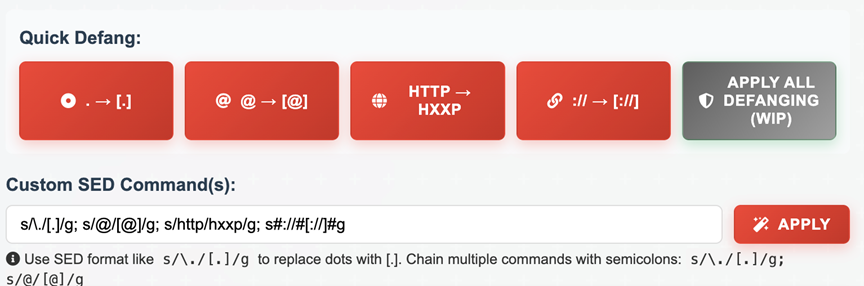
Figure 5: Our final ‘sed’ command with the fixed backslash
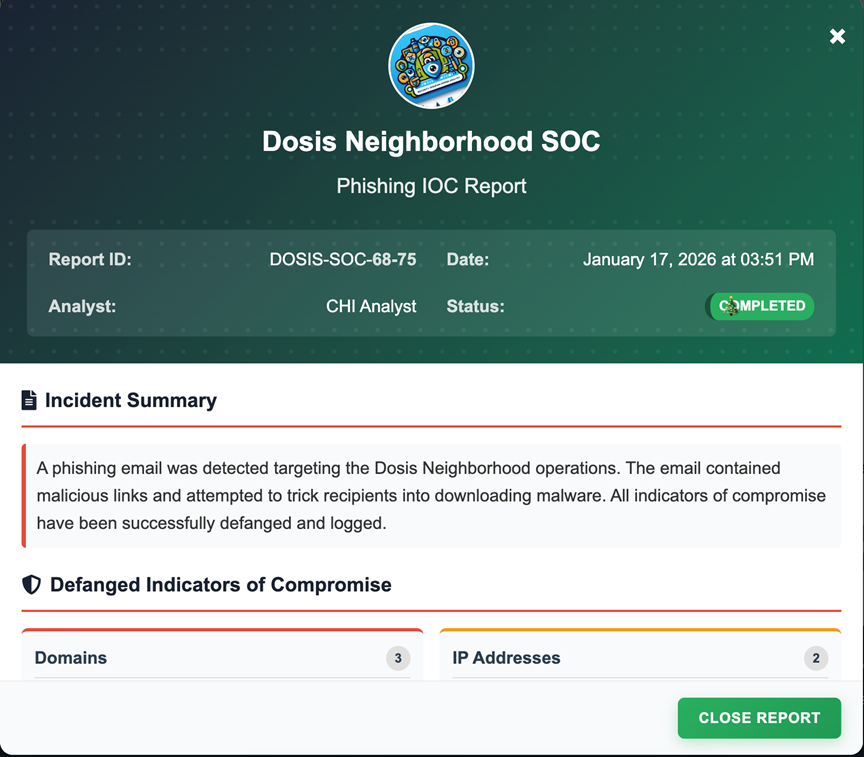
Figure 6: Our successful submission of our IOCs
This exercise demonstrates how AI can accelerate learning while still reinforcing the analytical rigor required in SOC work.
Exercise 2: IDORable Bistro
This challenge begins with gathering data from a QR code on a receipt (the receipt is around the corner from the Sasabune bistro), which leads to a URL. Using the URLScan.io plugin in Security Copilot, analysts can review the URL and identify an IDOR vulnerability.
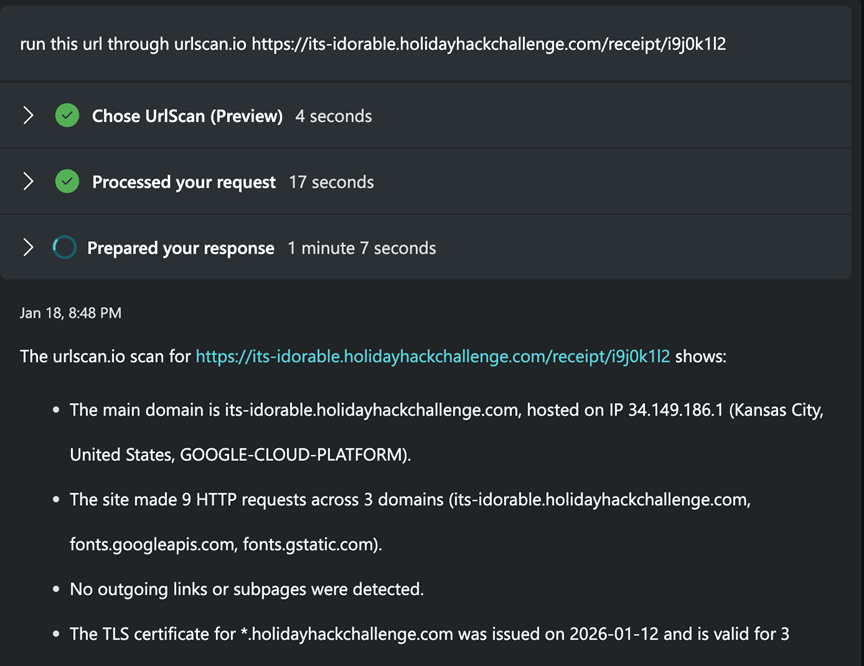
Figure 7: URLScan.io plugin in action
Traditionally, solving this challenge would require writing a script to iterate through ID values, a task some analysts may not be comfortable with, or may not have an immediate environment to execute. One could also ask Security Copilot to just iterate through that URL 100 times, however, it will only call a max of 5 URLs in one run when asked via a prompt, so compiling all the results we need, will likely require a lot of re-prompting, and thus makes it a good candidate for a different approach. Security Copilot can generate such a script, but it can also streamline the process by allowing analysts to build a custom agent.
Using Security Copilot’s no‑code Agent Builder, analysts can create a simple agent with the following purpose: iterate over a range of IDs, fetch each URL, and compile the results into a single table or CSV. By defining inputs (URL, variable name, range) and leveraging the FetchURL tool, the agent handles the iteration and captures incomplete or error results.
Building Your Agent
1. Go to Security Copilot → Build → Agents → Start from scratch.
Security Copilot opens the Agent Builder where you define the agent using natural language.
2. Give the agent its purpose.
Enter a display name, a simple description, and the overall goal. For example,
- Display Name – IDOR Helper
- Description – Iterate through a URL and gather results across a range of IDs.
3. Add instructions.
You are given a URL template containing a <var> placeholder and a specified range of values for <var> (e.g., 101–199). For each value in this range, fetch data from the corresponding URL and compile the results into either:
– a single, unified CSV file
– or a single unified table
The results should be structured according to the following detailed instructions. Your response must maximize completeness, accuracy, and exact structural consistency with the user’s requirements.
- Output Requirements:
– Process the entire specified range. Only stop if you reach a hard system limit (e.g., token or file size).
– The output must be either a full CSV file, or table containing all requested entries and all rows, not just a plan or summary.
– If any fields may contain lists or objects, serialize them as JSON strings within the CSV/table, and explicitly demonstrate this in the output.
– Your response must include the full data set, not a sample. We need the AI to have all the data available to it, not just the first X number of rows.
- Error and Missing Data Handling:
– For any failed fetch, missing, or incomplete data, fill affected fields with the string “null” (not blank).
– Add an “error” column in the CSV/table to indicate the nature of any error (e.g., “404 Not Found”, “timeout”, “invalid data format”). Leave this column blank only for successful entries.
– Explicitly show in your sample row(s) how errors/missing data are represented.
- Resource Limits and Continuations:
– If you reach a resource limit, clearly specify what the limit is (e.g., “token limit reached after 50 rows”).
– State exactly which portion of the range is included (e.g., “101–120 complete”) and which remains (e.g., “121–152 pending”).
– Provide actionable, step-by-step instructions for the user to continue (e.g., “Resubmit with range 121–152 to complete the dataset”).
– Clearly mark partial outputs in both the CSV/Table (e.g., add a comment line at top: “# PARTIAL OUTPUT: 101–120 of 101–152”) and in your preamble.
– Provide precise instructions for combining CSV files/table (e.g., using spreadsheet software or ‘cat’ on the command line, noting to avoid duplicating headers).
Always prioritize completeness, transparency, and strict adherence to the user’s requested schema and formatting. Only return a partial result if absolutely necessary, and always explain precisely how the user can access or combine the remaining data.
4. Add input fields.
Define the fields the agent should ask the user for
- url
- var
- range
5. Add tools if needed.
We will need to use the FetchURL tool.
6. Test and refine.
Switch to the Test tab to run the agent, check results, and adjust instructions until it behaves exactly as expected.
7. Publish.
Once complete, publish the agent so it’s available in your Copilot workspace.
Once the agent is enabled, analysts provide the required inputs, and the agent processes the ranges, informing the user if resource limits are reached and providing guidance on how to continue.
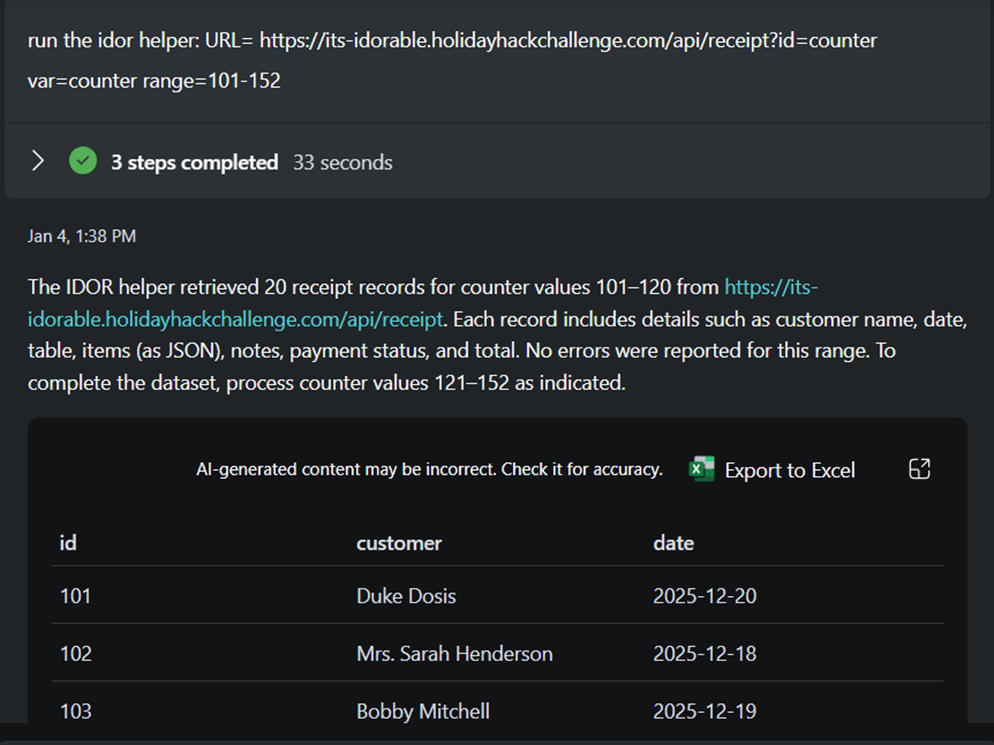
Figure 8: Running our IDOR Helper
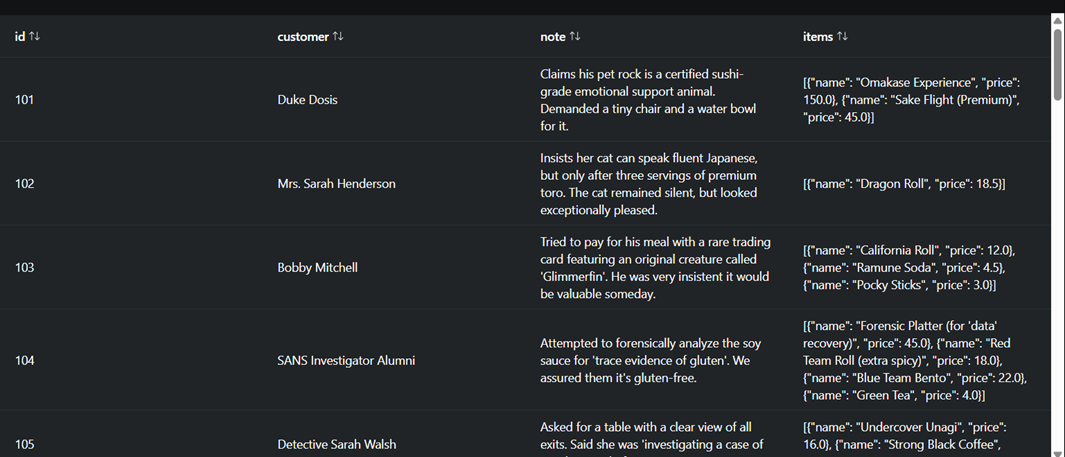
Figure 9: A look into the results
As you can see by the screenshot above, the tool may not always iterate far enough, even if told. The positive part is that you can tell it to pick up where it left off and add the results to your table.
With all receipts collected, Security Copilot can then search for the target term (“frozen sushi”) and identify the requester.
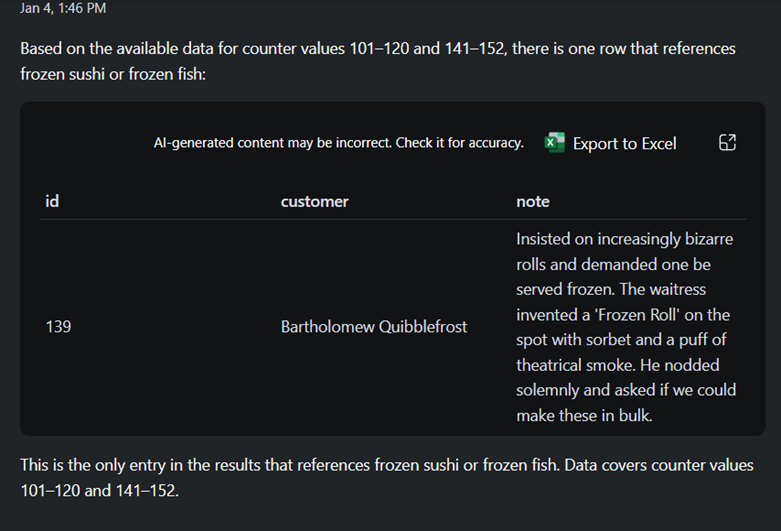
Figure 10: Security Copilot finds requester
If we submit Bartholomew Quibblefrost as seen below, we can see that we found our gnome!
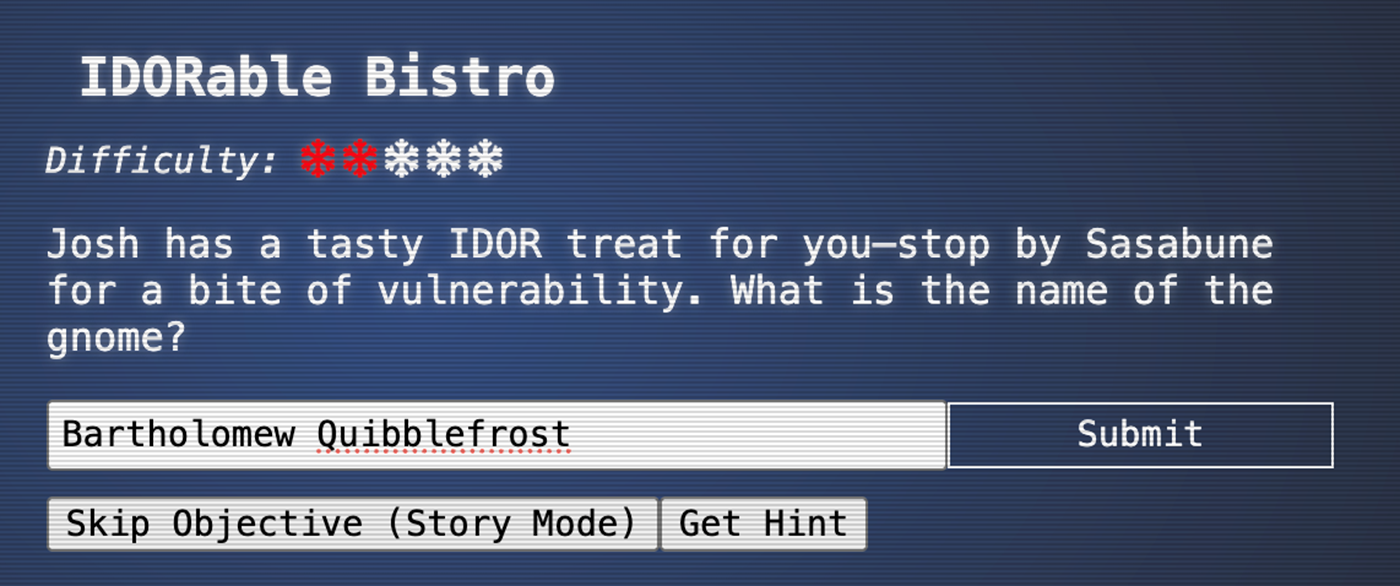
Figure 11: Our submission
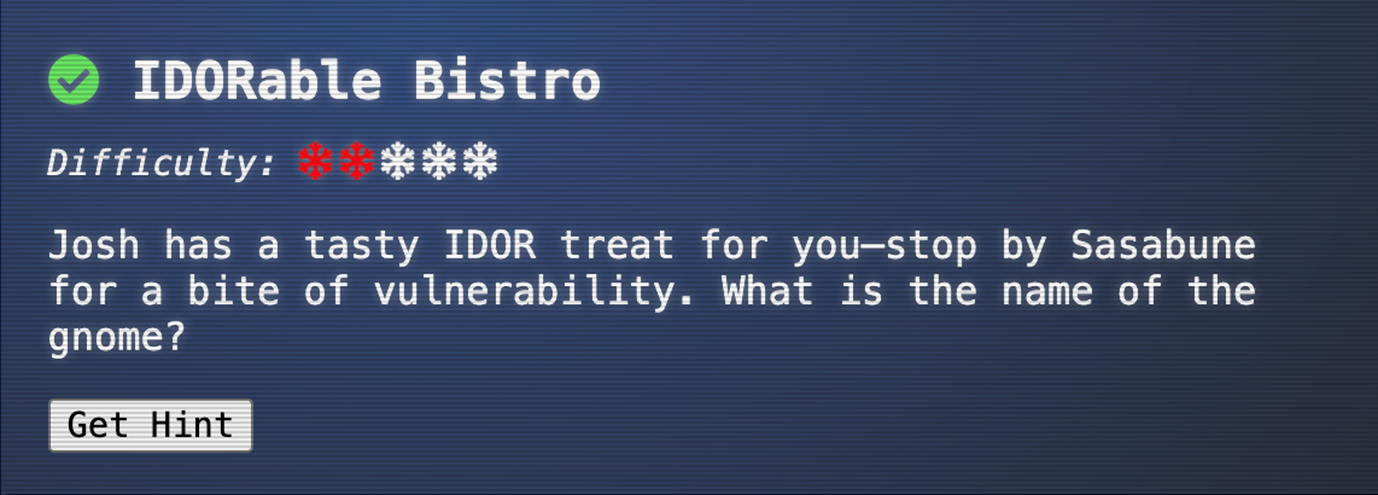
Figure 12: Our result
This challenge illustrates how AI can bridge skill gaps, enabling analysts to complete technical tasks, like enumeration, without needing to write code, while still understanding the underlying logic.
Conclusion
We began with a basic prompt in the first exercise and progressively introduced more sophisticated tools and agent‑building capabilities in the second. Throughout both, analysts learned core concepts (regex, parsing, enumeration) and saw firsthand how AI can enhance their workflows without requiring coding expertise.
These are just a few examples of how CTF challenges can be used to train analysts on AI tools. As analysts gain confidence, they can explore far beyond the basics, including building Python‑based agents or integrating custom plugins. An example of python-based agent is SRA’s CrowPilot agent that allows CrowdStrike integration into Security Copilot.
If there is one key takeaway, it is this: the best way to drive AI adoption in the SOC is to get analysts engaged early and allow them to explore on their own. AI is a significant investment, and organic adoption will play a critical role in ensuring it delivers meaningful value.
Need help implementing AI? SRA is here to support, whether building custom Security Copilot agents or deploying scalable AI solutions like SRA’s SCALR AI platform.

Greg Stachura
Greg focuses on Incident Response and the Cyber Security Operations Center. Greg has experience managing SIEM, as well as orchestration and automations platforms. He also has extensive background in Incident Response playbook development, forensics and log analysis. Prior to joining Security Risk Advisors, Greg worked extensively in the financial, healthcare and education sectors.